Table of Contents
Theme Installation
- Log in to your Ghost website admin (example.com/ghost).
- Click the settings icon ( ) at the bottom of the left-hand side.
- Go to Site > Theme and click Change theme.
- Click Upload theme and select the hanoi.zip theme file.
- Once uploaded, click Activate.
Upload the routes.yaml File (⚑ Required)
To upload the file, follow these steps:
- Unzip the hanoi.zip theme file.
- In your Ghost admin, click the settings icon ( ) at the bottom of the left-hand side.
- Go to Labs.
- From the Routes section, click the Upload routes YAML button.
- Select and upload the
routes.yamlfile inside the theme folder.

Note: upload routes.yaml after uploading the theme zip
There will already be a default routes.yaml file uploaded to Ghost. You need to upload your theme’s routes.yaml to override the default.
Upload the routes.yaml file separately after uploading your theme zip file.
Design Settings
Hanoi uses Ghost’s design settings for brand, color, and typography choices.
Site Identity and Logo
Set the site title and description in Settings > General.
To add a logo, go to Settings > Design & branding > Brand, upload the logo, and click Save.
Color Scheme
Go to Settings > Design & branding > Site-wide and choose a Color scheme.
Hanoi includes:
- Default Colors
- Custom Colors
- Soft Plum
- Dark Charcoal
- Dark Moss
- Dark Claret
If you choose Custom Colors, use the Background color and Text color settings to set your own palette.
Accent Color
Set the site accent color in Settings > Design & branding > Brand > Accent color.
Hanoi uses accent color for selected surfaces and fallback archive heroes. Tag pages can also use each tag’s own accent color.
Tag Images and Colors
To complete tag cards, tag pages, and navigation previews:
- Go to Tags in Ghost Admin.
- Open a public tag.
- Add a description for the tag page.
- Add a feature image.
- Set an accent color.
- Click Save.
Tag cards use the tag name, feature image, and accent color. Tag pages also use the description. Navigation previews use the tag feature image.
Ghost Custom Fonts
Hanoi supports Ghost Custom Fonts.
To change fonts, open Settings > Design & branding and use the typography controls in Ghost Admin.
Default Hanoi typography is designed for editorial publishing: Fraunces for titles and long-form article text, with Manrope for navigation, metadata, labels, and buttons.
Drop Caps
Hanoi includes two drop-cap utility classes for post content:
u-drop-cap-small
u-drop-cap-large
To use one, add an HTML card in the Ghost editor and apply the class to the paragraph.
Example:
<p class="u-drop-cap-large">Your opening paragraph...</p>
Homepage
Hanoi’s homepage is assembled from Ghost content and a few theme settings. Upload the theme routes.yaml file before setting up the homepage sections.
Make sure to Upload the routes.yaml file.
Featured Posts
Hanoi shows up to five featured posts in the first homepage section.
Posts using the Post Video template can show a muted autoplay preview in this section.
To add a post to the Featured section:
- Open a post in Ghost Admin.
- Open Post settings.
- Turn on Feature this post.
- Click Update or Publish.
If no posts are featured, the Featured section is hidden and the next available homepage section moves up.
Homepage Intro
The intro section is powered by a Ghost page tagged with the internal tag #homepage-intro.
To create the intro:
- Create a new page in Ghost Admin.
- Add the intro text in the editor.
- If you use images, place one or two image cards inline where they should appear in the sentence.
- Open Page settings.
- Add the internal tag
#homepage-intro. - Publish the page.
Hanoi uses the latest published page with this tag. The page title is not shown in the intro section; only the editor content appears.
Images in the intro appear as small inline editorial marks. On desktop, readers can hover an intro image to see a larger preview.
If the intro text is too large, go to Settings > Code Injection > Site Header in your site admin and add:
<style>.c-intro-section__content{font-size:40px}</style>
Change 40px as needed.
Homepage Tags
The homepage Tags section can show tags automatically, show selected tags, or be hidden.
Go to Settings > Design & branding > Homepage and use the Homepage tags setting:
- Show up to 20 tags - shows public tags alphabetically.
- Show selected tags - shows only the slugs you enter.
- Hide tags section - removes the section from the homepage.
If you choose Show selected tags, copy each tag slug from Ghost Admin and add the slugs to Homepage tag slugs, separated by commas with no spaces.
Example:
design,photography,culture
Tag cards use the tag name, feature image, and accent color from Ghost Admin.
Latest Stories
Latest Stories appears automatically and shows up to 12 recent posts.
If the Featured section has posts, Latest Stories excludes the five posts shown there. Other featured posts can still appear in Latest Stories.
Editor’s Pick
Editor’s Pick is a single curated homepage spotlight.
To choose a story:
- Open a post in Ghost Admin.
- Add the internal tag
#editors-pick. - Publish or update the post.
Hanoi shows one post with this internal tag. If that post is already shown in the Featured section, Hanoi uses another #editors-pick post instead.
Site Newsletter
The site-wide newsletter section appears before the footer for signed-out visitors when Ghost Members is enabled.
To create it:
- Create a new page in Ghost Admin.
- Use the page title as the newsletter heading.
- Add a custom excerpt for the short description.
- Add a feature image if you want a split image layout.
- Add the internal tag
#site-newsletter. - Publish the page.
The newsletter choices come from Ghost newsletters. Manage them in Ghost Admin under Settings > Email newsletter.
Navigation
You can add, edit, delete, and reorder the primary navigation menu in Ghost Admin from Settings > Site > Navigation > Primary.
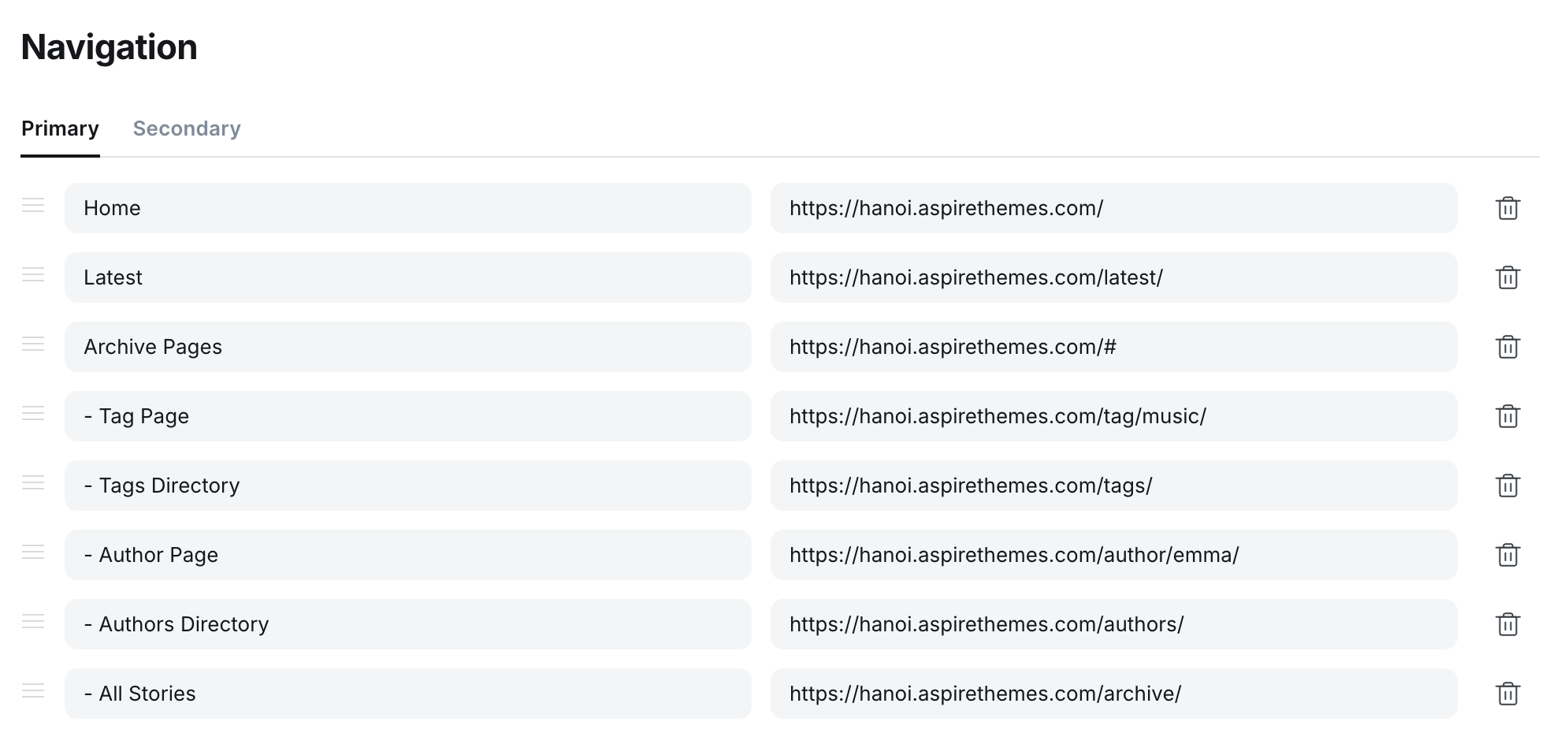
To add a page:
- Type the label as it should appear.
- Click the item’s URL field.
- Add the page slug after the final / and click Save.

Dropdown Menus and Navigation Previews
Hanoi supports desktop dropdown menus from Ghost Primary navigation.
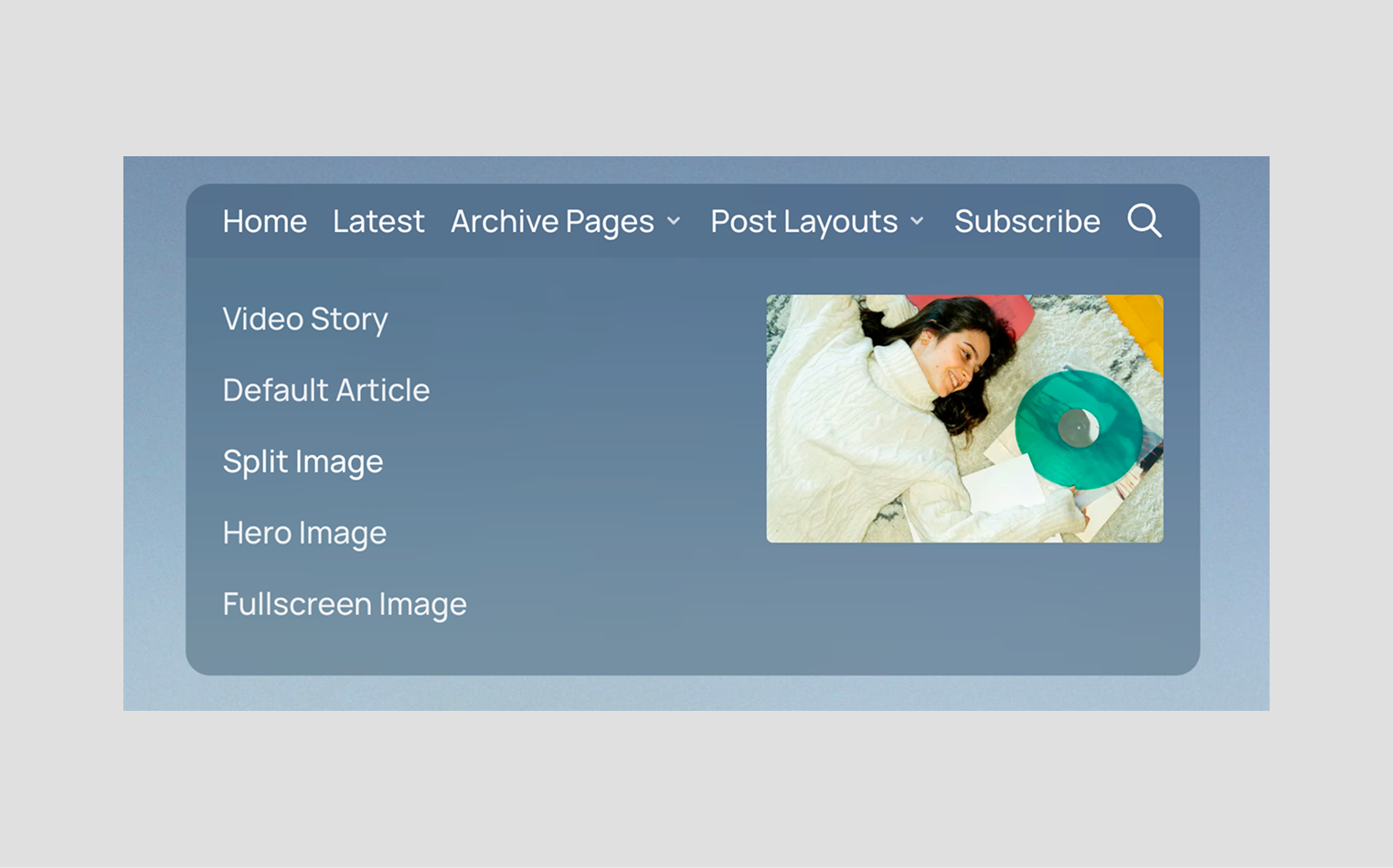
Add a parent navigation item, then add child items below it by starting the child label with a hyphen and a space.
Example:
Archive Pages
- Tag Page
- Tags Directory
- Author Page
- Authors Directory
- All Stories
The child links are grouped under the closest parent item above them.
If the parent item is only a group label, use # as its URL. If the parent should open a real page, use that page URL.
On desktop, internal dropdown links can show a preview image. Hanoi uses:
- Post and page feature images.
- Tag feature images.
- Author profile images, with author cover images as a fallback.
External links and internal links without images still work as normal text links. The preview is an enhancement, not a required setup step.
Video Previews in Navigation
Navigation previews can also show muted video previews for links to posts using the Post Video template.
For best results:
- Use the Post Video template on the linked post.
- Add a native Ghost video card or a YouTube embed to the post.
- Add a feature image if you want to choose the static preview shown while the video loads.
If the video preview cannot play, Hanoi keeps the link usable and shows a static preview when possible.
Secondary Navigation / Footer
Like Header Navigation, you can add the footer navigation links from the Ghost admin Settings > Site > Navigation > Secondary.
Pages
Hanoi includes index-style pages for recent posts, older stories, tags, and authors.
Latest and Archive are created by the theme routes.yaml file. Tags Directory and Authors Directory are Ghost pages that use custom templates.
Make sure to Upload the routes.yaml file.
Latest Page
The Latest page lives at /latest/. It is created by routes.yaml, so you do not need to create a Ghost page for it.
Readers see recent posts in the standard post grid. The hero uses the publication cover image when available, or the site accent color when no cover image is set. Load more appears when there are more posts than the page limit.
To add it to navigation:
- Go to Settings > Site > Navigation > Primary.
- Add a label such as
LatestorLatest Stories. - Use
/latest/as the URL. - Click Save.
Archive Page
The Archive page lives at /archive/. It is created by routes.yaml, so you do not need to create a Ghost page for it.
Readers see a date-led list of posts. On desktop, each row can show the post feature image on hover. The hero uses the site accent color when one is set.
To add it to navigation:
- Go to Settings > Site > Navigation > Primary.
- Add a label such as
ArchiveorAll Stories. - Use
/archive/as the URL. - Click Save.
Tags Directory
The Tags Directory page shows up to 100 public tags.
To create it:
- Create a new page in Ghost Admin.
- Use a title like
Tags. - Add a custom excerpt if you want intro text below the title.
- Add a feature image if you want a media hero.
- Open Page settings.
- Select the Tags Directory template.
- Publish the page.
Hanoi shows the page title, custom excerpt, feature image, and public tags ordered by name.
Authors Directory
The Authors Directory page shows authors who have published posts.
To create it:
- Create a new page in Ghost Admin.
- Use a title like
Authors. - Add a custom excerpt if you want intro text below the title.
- Add a feature image if you want a media hero.
- Open Page settings.
- Select the Authors Directory template.
- Publish the page.
Hanoi shows the page title, custom excerpt, feature image, and authors ordered by name. Authors without published posts are hidden.
Note for self-hosters
If a custom template does not appear in Ghost Admin after uploading the theme, restart Ghost or deactivate and activate the theme again.
Tag and Author Pages
Ghost automatically creates native tag pages at /tag/tag-slug/. Hanoi uses each tag’s name, description, feature image, and accent color.
If a tag has a feature image, Hanoi uses it as the tag hero image. If there is no feature image, the tag accent color can be used as the hero background.
Ghost automatically creates native author pages at /author/author-slug/. Hanoi uses the author’s name, bio, profile image, cover image, location, website, and social links when available.
Post Layouts
Hanoi includes the default post layout plus four custom post templates.
To choose a layout:
- Open a post in Ghost Admin.
- Open Post settings.
- Choose a template from the Template dropdown.
- Click Update or Publish.
Default Post
Use the default layout for standard articles. It shows the post title, excerpt, metadata, optional feature image, reading tools, content, authors, comments, and related posts.
Post Hero
Use Post Hero for image-led stories that need a large media hero with the title over the image.
Add a feature image for the hero. Without a feature image, the post opens with a simple centered header.
Post Fullscreen
Use Post Fullscreen for stories where the opening image should fill the first viewport.
Add a feature image for the fullscreen hero. Without a feature image, the post opens with a simple centered header.
Post Split
Use Post Split for stories that need a split opening: image on one side, title and metadata on the other.
Add a feature image for the split media. Without a feature image, the post opens with a simple centered header.
Post Video
Use Post Video for stories where video is the lead media.
The first eligible native Ghost video card or YouTube embed in the post content is promoted into the top video area. The article body remains readable below it.
Video Stories and Previews
Hanoi supports video in three places: video story pages, post cards, and navigation previews.
Create a Video Story
- Open a post in Ghost Admin.
- Add a native Ghost video card or a YouTube embed to the post content.
- Open Post settings.
- Choose the Post Video template.
- Add a feature image to use as the video poster before playback.
- Publish or update the post.
Hanoi uses the first eligible video in the post content as the top video. The original video card is removed from the visible article flow so the video does not appear twice.
Video Previews
Posts using the Post Video template can show muted previews in post cards, the Featured section, Editor’s Pick, and navigation previews.
Video previews are an enhancement. Readers can still open the post normally if a preview cannot play.
Supported Video Sources
For the video story layout and previews, use:
- Native Ghost video cards.
- YouTube embeds.
Other embeds may still appear in post content, but they are not treated as Hanoi video preview sources.
Membership and Newsletters
Hanoi uses Ghost Memberships, Portal, paid content, comments, and newsletters directly.
When Members is enabled:
- Signed-out visitors see a Subscribe link in the header.
- Signed-in members see an Account link.
- Member-only posts show an upgrade or subscribe prompt when needed.
- The site newsletter section can appear before the footer when a newsletter page exists.
Disable Membership Components
To remove membership links, forms, and paid-content prompts from the theme, disable membership access in Ghost Admin.
- Go to Settings > Membership > Access > Subscription access.
- Select Nobody.
- Click Save.
Newsletter Setup Notes
Newsletter choices come from Ghost newsletters, not theme settings.
Manage them in Ghost Admin under Settings > Email newsletter. To create the visible site newsletter section, follow the Site Newsletter setup. If the section does not appear, check that Members is enabled, you are signed out, and the #site-newsletter page is published.
Remove Ghost Portal / The Bottom Right Button
This is the Ghost Portal button. You can disable it in Ghost Admin. Learn more in Portal Look and feel.
Membership Troubleshooting Tips
If the subscribe form shows an error, check these items first:
Make sure your site is running the latest version of Ghost.
If you self-host Ghost, configure the mail settings and restart your server.
Make sure the Ghost config URL matches the public URL readers use to visit your site, as described in the Ghost docs.
Use the full public URL. If your site uses a subpath, enter the full path, such as https://example.com/blog/. If SSL is enabled, use https://.
If the issue continues on Ghost(Pro), contact Ghost support. If you self-host, contact your hosting provider.
Membership email delivery and server configuration are handled by Ghost or your host, not by the theme.
For more information about Members, connecting Stripe, and setting the package price, check the official Ghost documentation.
Search
Hanoi uses the Ghost Native Search.
Ghost search uses post titles and excerpts from the 10,000 most recent posts. It does not search the full body of every post.
Comments
The theme comes with Ghost Native Comments integration. You can turn the comments on from your Ghost admin Settings > Membership > Commenting.
Learn more about Ghost comments.
Ghost developer documentation for comments.
Reader Tools
Hanoi includes quiet article tools for long-form reading.
Reading Progress
Post pages show a reading progress bar at the top of the page.
Voice Reader
The Listen button reads the post aloud. By default, it uses the browser and operating system speech voices, so voice quality can vary.
Text Size
The text-size controls let readers adjust the article reading size while staying on the page. Hanoi remembers the choice in the reader’s browser.
Comments Drawer
When Ghost comments are enabled, Hanoi opens comments in a side drawer from the post action bar.
Direct links to #comments open the same comments area.
Sharing
The Share action opens Ghost’s native share modal.
Image Lightbox
Unlinked post images, gallery images, and supported feature images can open in Hanoi’s image viewer. Linked images keep their normal link behavior.
Social Links
Hanoi uses Ghost social accounts.
Go to Settings > General > Social accounts and add the URLs you want to show.
Social links can appear in:
- The homepage intro section.
- The footer.
Languages
Hanoi includes translation files for:
da, de, en, es, fi, fr, he, it, nl, pt, pt-BR, tr
Theme Translation
To use one of the included translations, go to Settings > General > Publication language and enter the language code.
For example:
fr
Then click Save settings.
Zip Theme Files
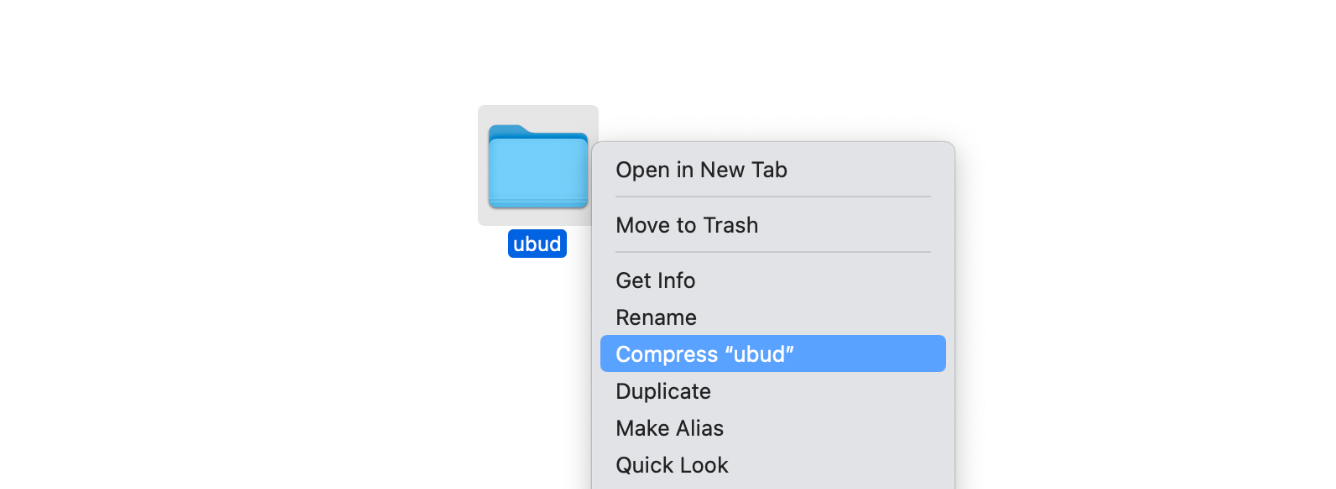
You can compress it as a standard folder like any other folder on your computer. If you are on Mac, right-click on the theme folder to view the context menu. Then, click the Compress option.
Have any questions? Contact Ahmad